
How to use QuickBooks Online step by step — If you really want to learn without any heavy accounting terminology or technical overload, then this blog is for you. The main goal of this blog is simple – to explain the 2026 version of QuickBooks Online in such a practical way that you understand how the system flows just by reading it. There will be less theory and more real-world usage.
Small business owners often think that accounting software means complex reports, confusing dashboards, and only CA-level knowledge. But the truth is, with the right guidance, anyone—whether a freelancer, retailer, service provider, or startup founder—can manage their own basic accounting. This blog has been structured with that in mind.
Here, you will get started with account setup, then step-by-step invoicing, recording daily expenses, connecting a bank account, and understanding the most important financial reports. Each section is explained in practical terms so you understand not only the features but also their business impact.
What is QuickBooks Online?
QuickBooks Online is cloud-based accounting software designed specifically for small and mid-sized businesses. Simply put, it’s your digital accountant, available online 24/7. You can manage your invoices, expenses, bills, tax settings, bank transactions, and financial reports all in one place.
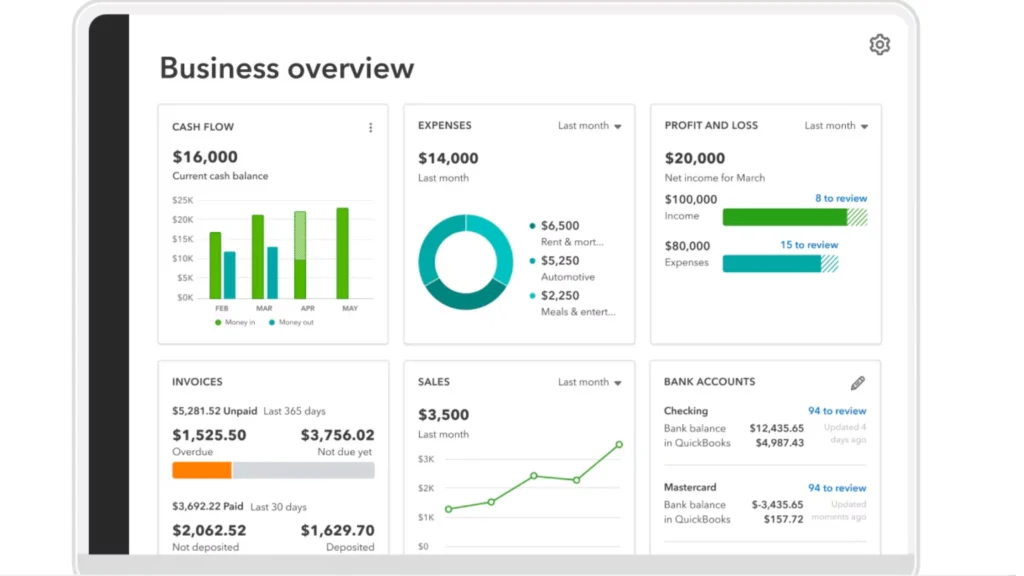
Best of all, you don’t need extensive accounting knowledge. The interface is beginner-friendly and guides you step-by-step through the workflow. Whether you’re on a laptop or mobile, all you need is an internet connection, and you can view your business numbers in real time.
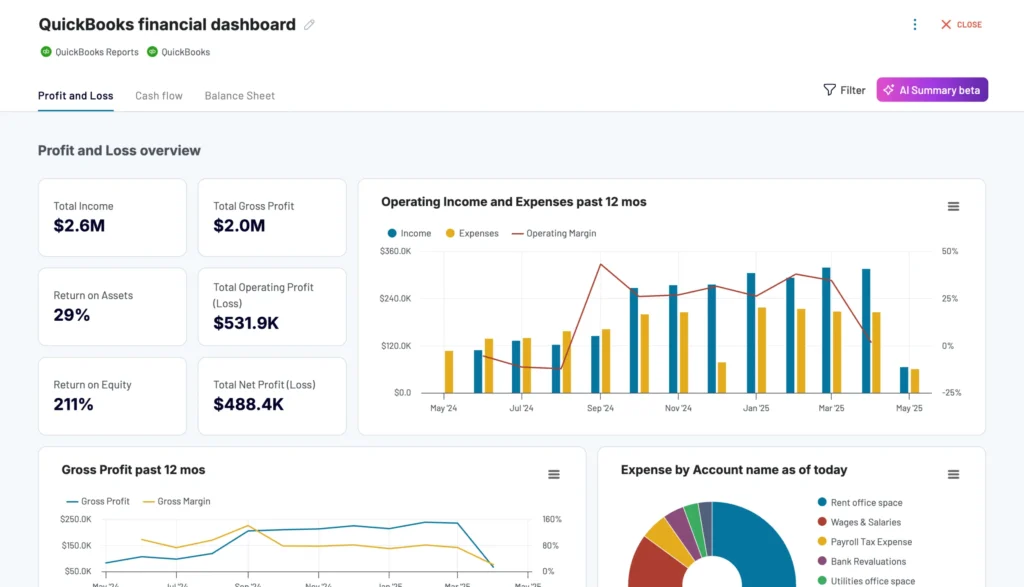
Do you want to know more about accounting software?
Read Also – AI Accounting tools for Small Businesses
Why use QuickBooks Online for Small Business?
To be honest, in today’s digital age, running accounting solely on Excel sheets or diaries has become a bit risky. When the business is small, it may be manageable, but as transactions increase, confusion also increases. If an entry is accidentally missed or a calculation error is made, the entire financial picture appears distorted. This is where the real value of QuickBooks Online is realized. Its main focus is on saving you time and giving you clear financial visibility.
With the help of this software, you can create professional invoices and send them directly to clients and easily track their payment status. Expenses and bills are properly categorized, which helps you know where the money is going. The most useful feature is bank account integration—transactions are automatically imported, reducing the hassle of manual entry. Furthermore, profit & loss and cash flow reports give you a realistic picture.
It helps in
- Create invoices and send them directly to clients
- Track online payments
- Organize expenses and bills
- Connect bank accounts and import transactions automatically
- Generate Profit & Loss and Cash Flow reports
- Automatically categorize income and expenses
In today’s times, manual accounting or relying solely on Excel can be risky. The main goal of QuickBooks Online is to save you time and provide financial clarity.
In simple words, this tool transforms accounting from a stress to a system—organized, transparent, and growth-focused.
How to use QuickBooks Online step by step
If you’re a beginner or manage your own business, these sections are most important to you:
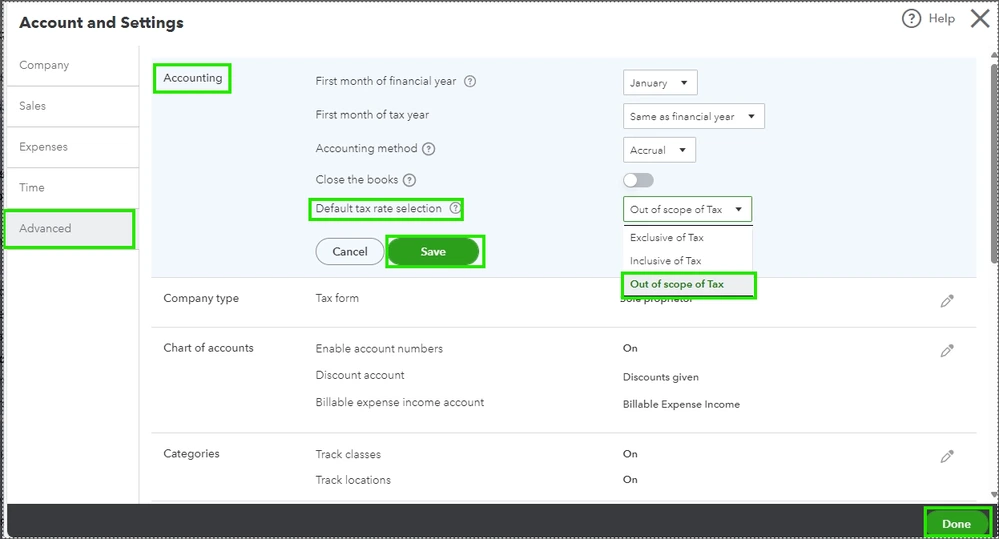
1. Account Setup (QuickBooks Online for Small Business)
Start with business profile setup. Here you go:
- Select a business name and industry
- Configure GST/VAT or tax settings
- Link a bank account
Bank connection is the most powerful feature. Once the bank is linked, transactions automatically appear in the software. This significantly reduces the burden of manual data entry.
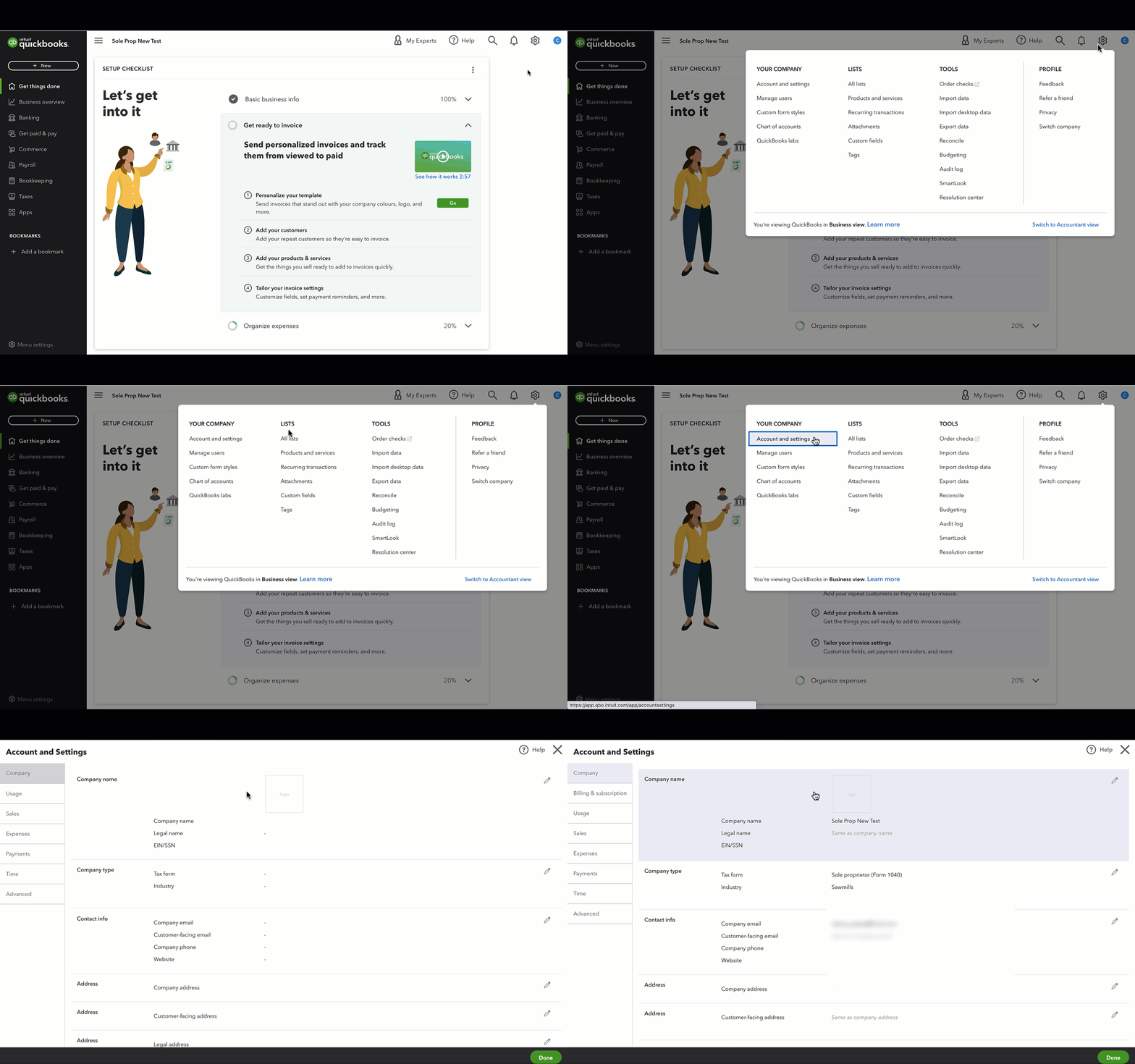
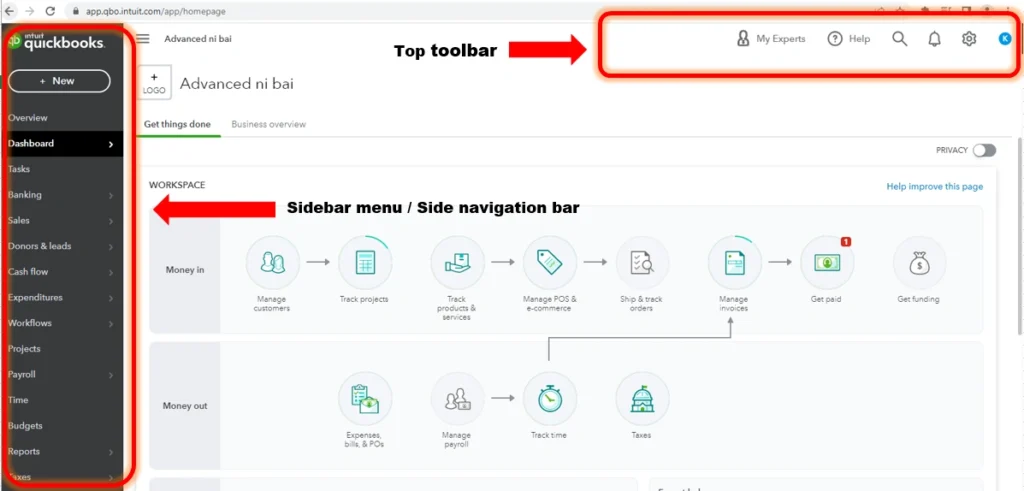
QuickBooks Online 2026 Setup Checklist Dashboard Interface
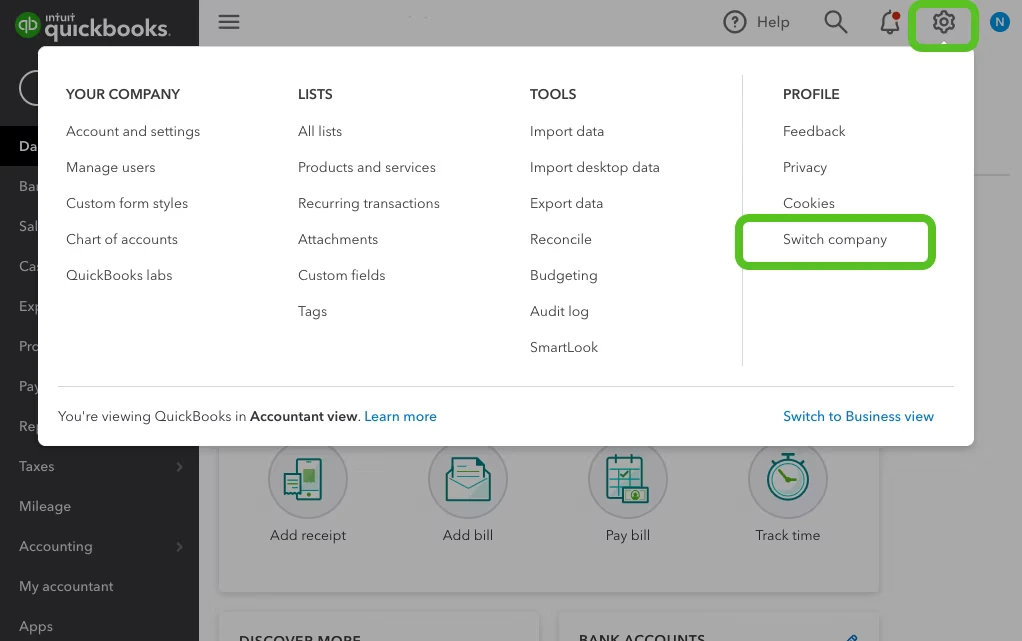
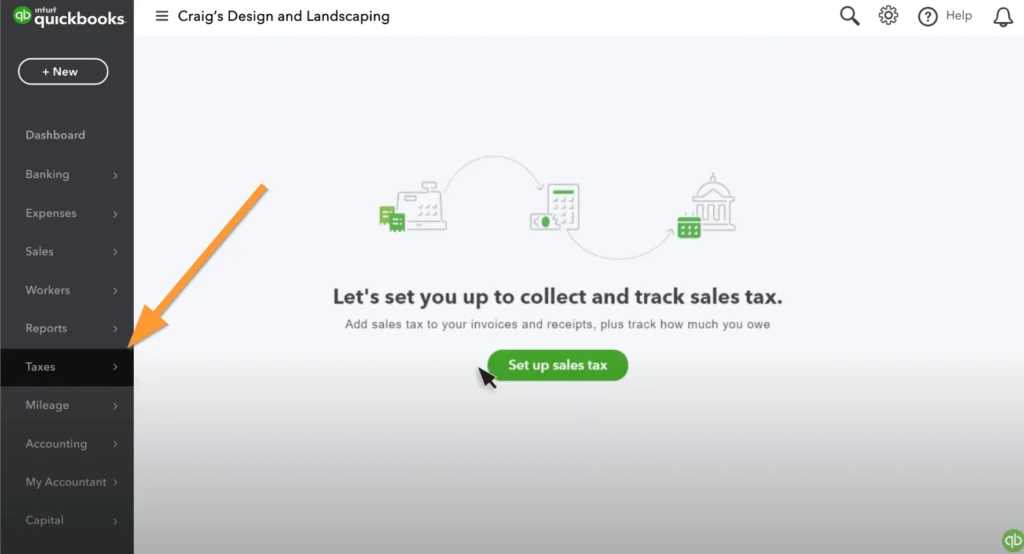
2. Invoice Creation – Professional Billing
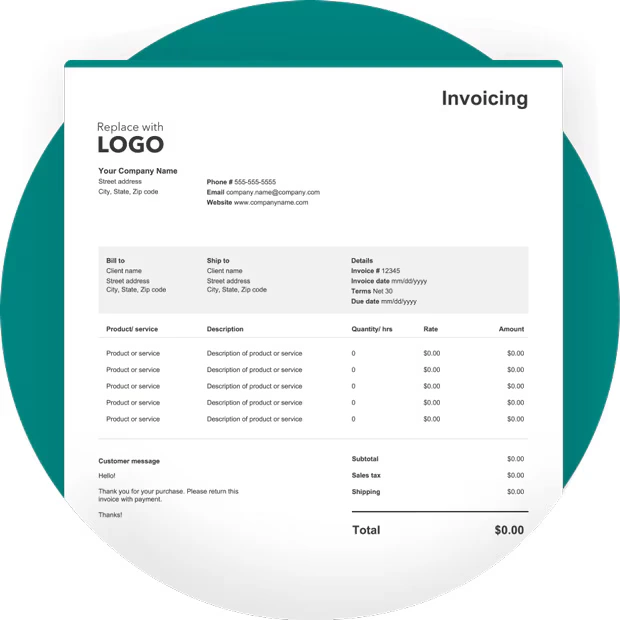
Sending a professional invoice after providing service to a client is essential.
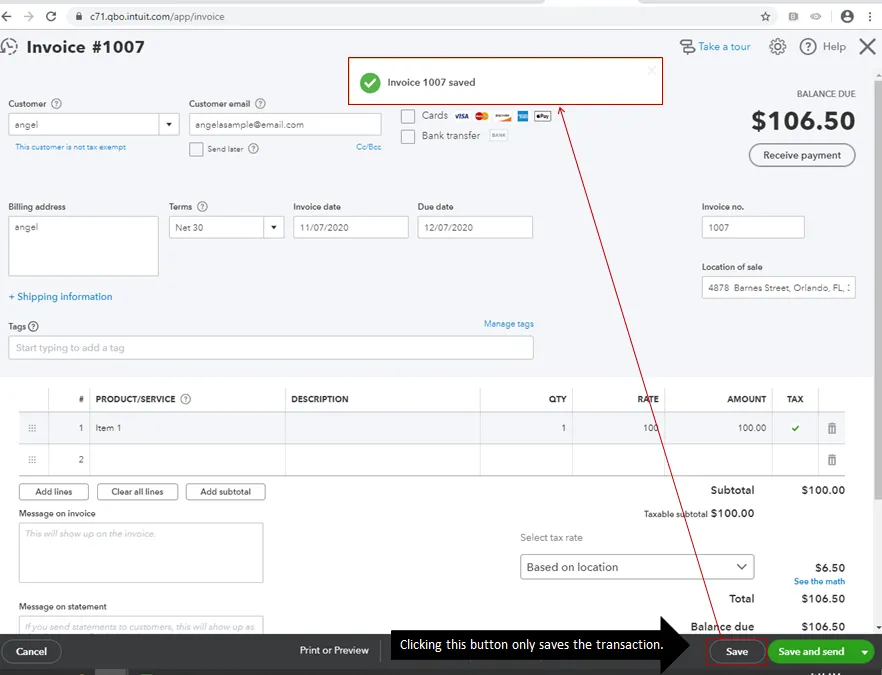
In QuickBooks:
- Select a customer
- Add a product or service
- Set a due date
- Send by direct email
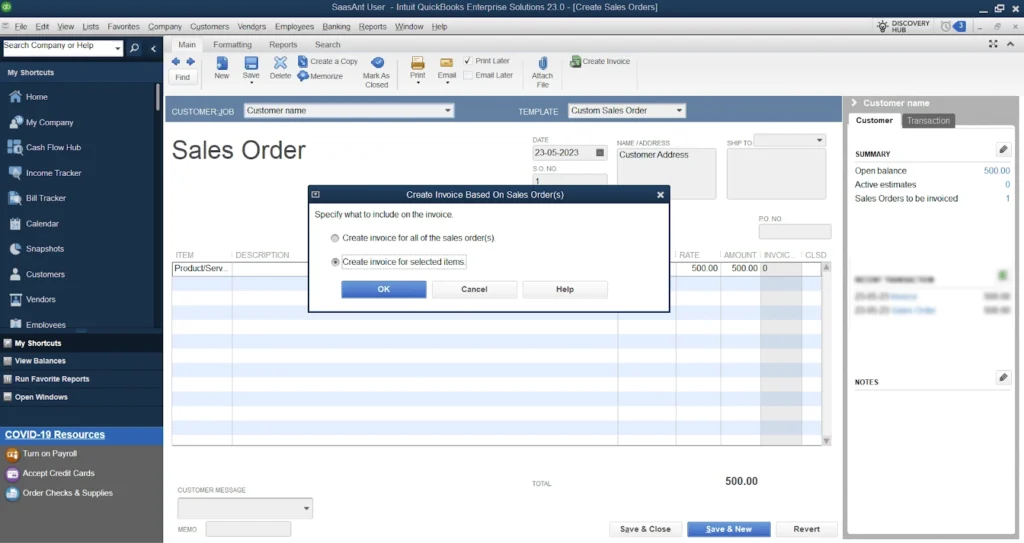
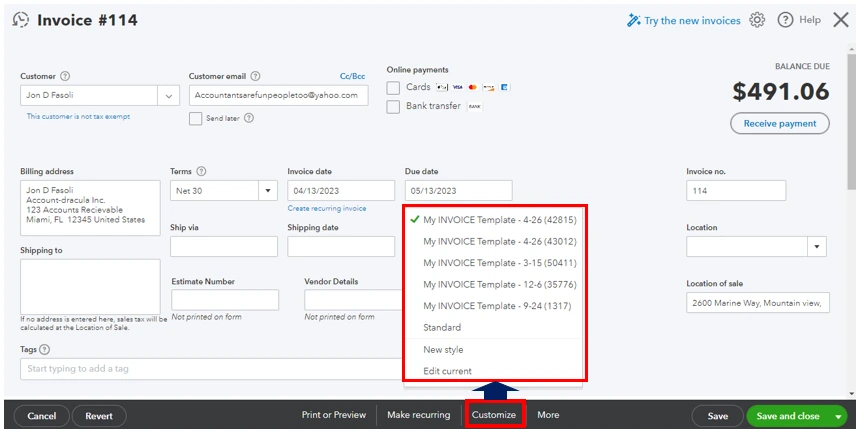
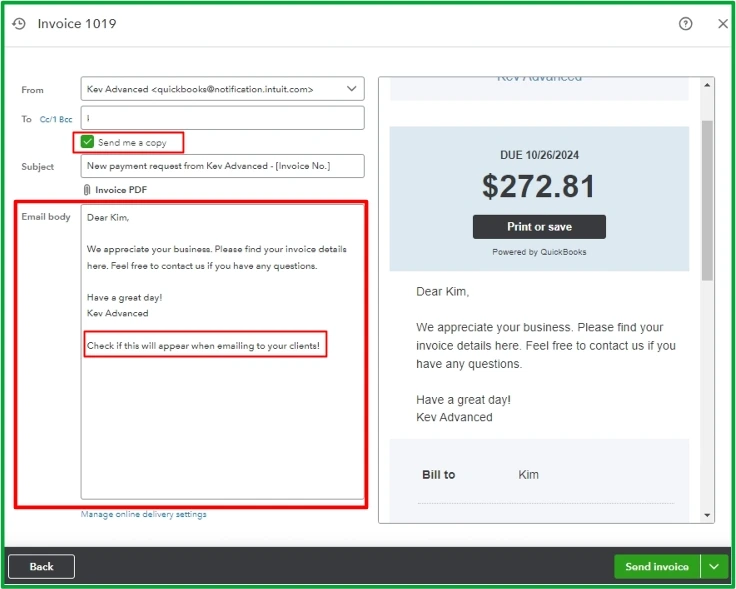
You can record payments in the system as soon as they are received. This provides a clear view of cash flow.
3. Expenses & Bills Management
Cost control is important in every business.
Here you go:
- Add vendors
- Record bills
- Set payment due reminders
- Track expense categories
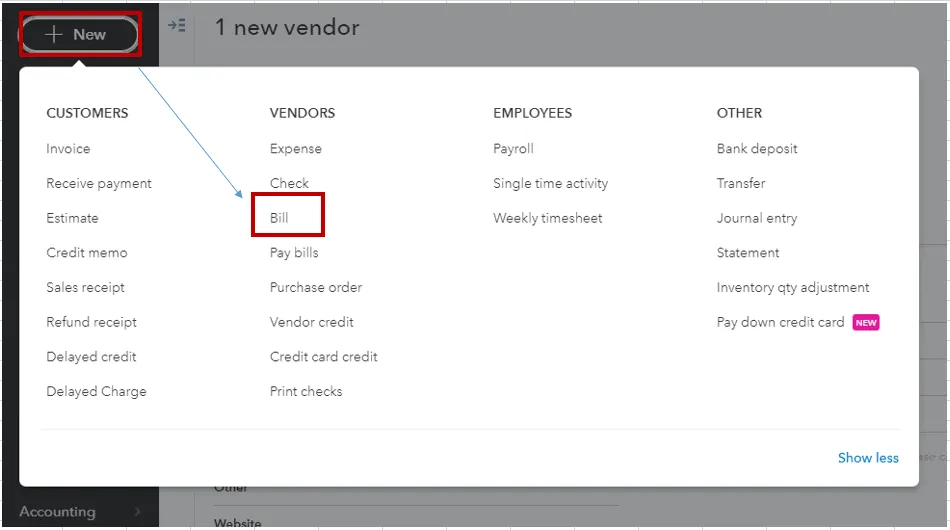
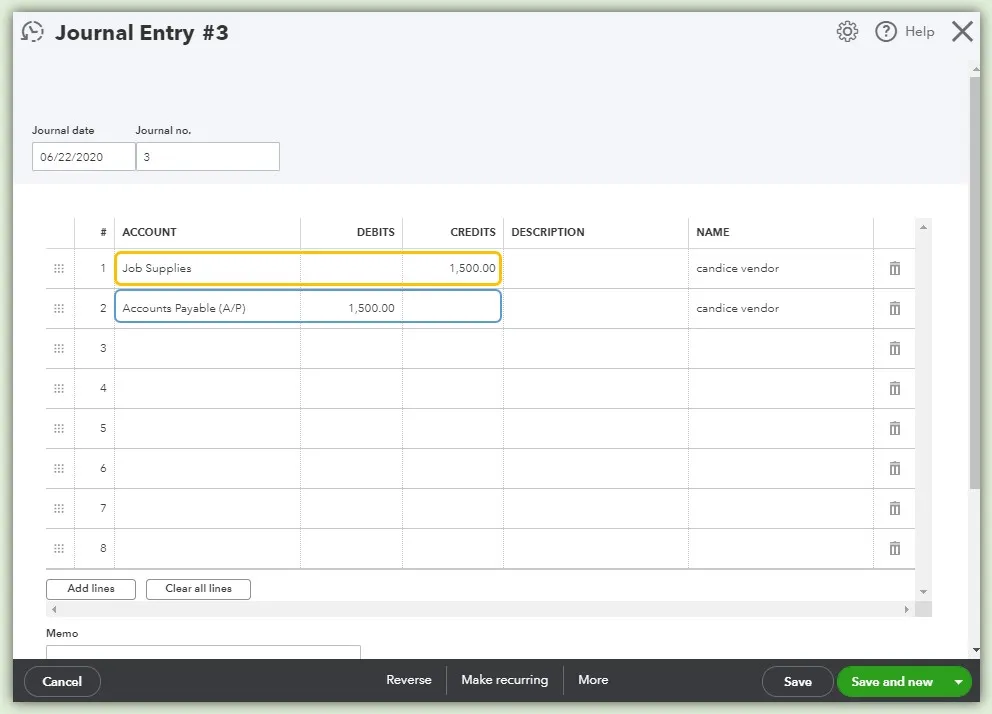
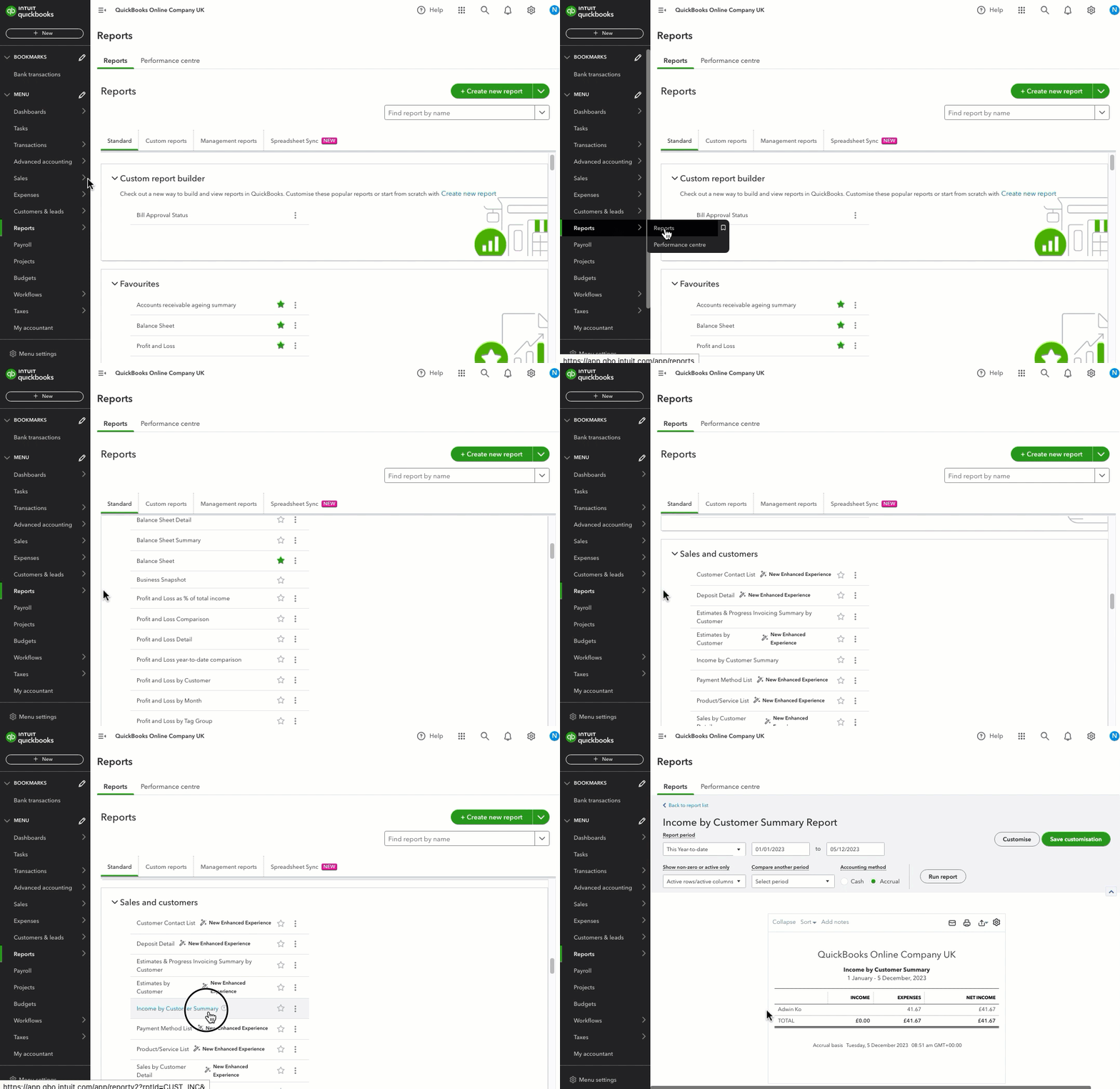
This helps you keep track of where money is going and where unnecessary spending is occurring.
4. Bank Reconciliation – Accuracy Check
Bank reconciliation means matching the software’s records with the bank statement.
This process:
- Duplicate entries can be detected
- Missing transactions are detected
- Accounting remains clean and accurate
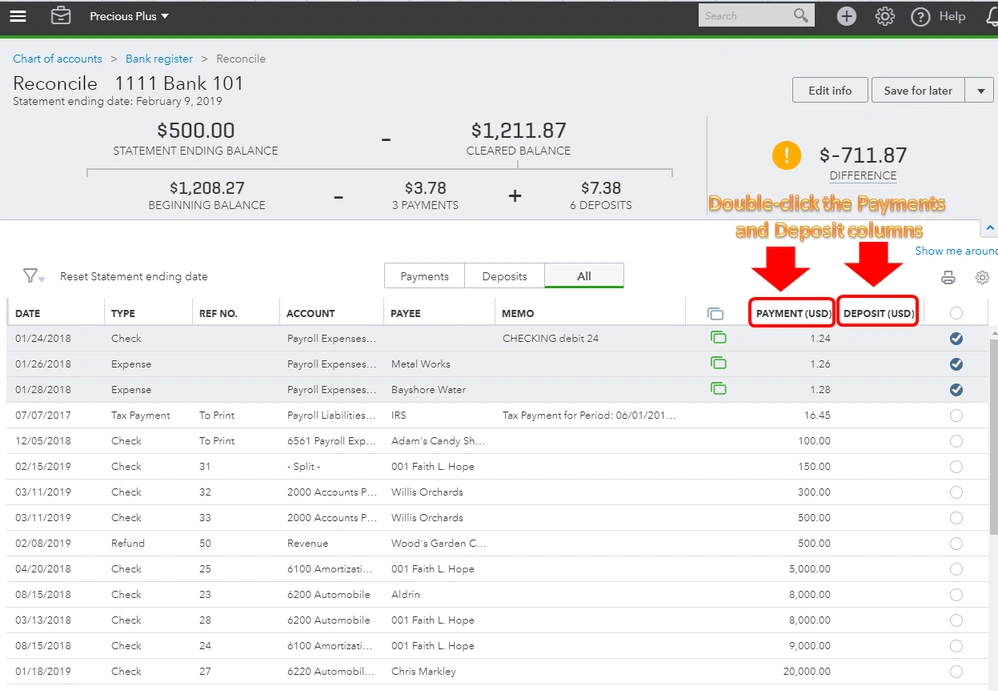
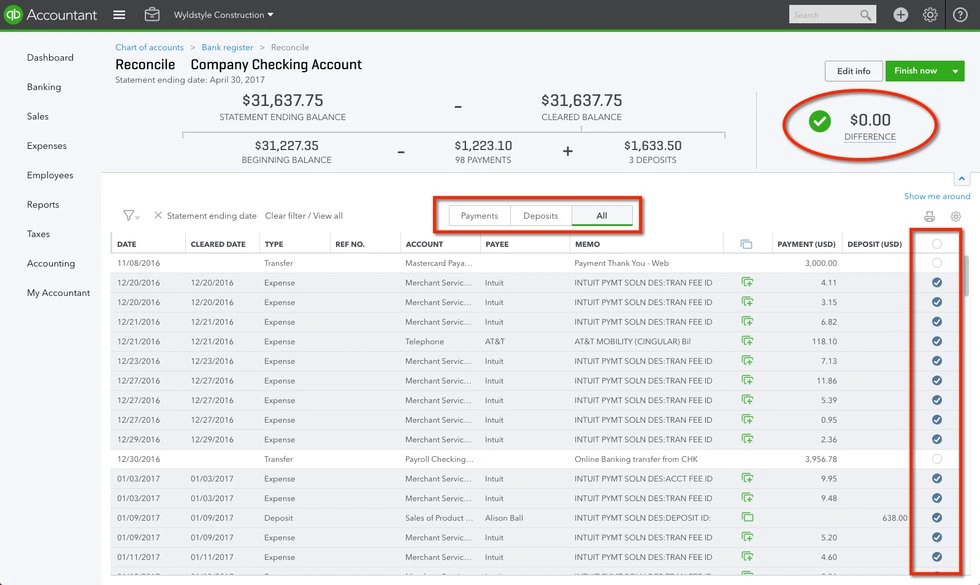
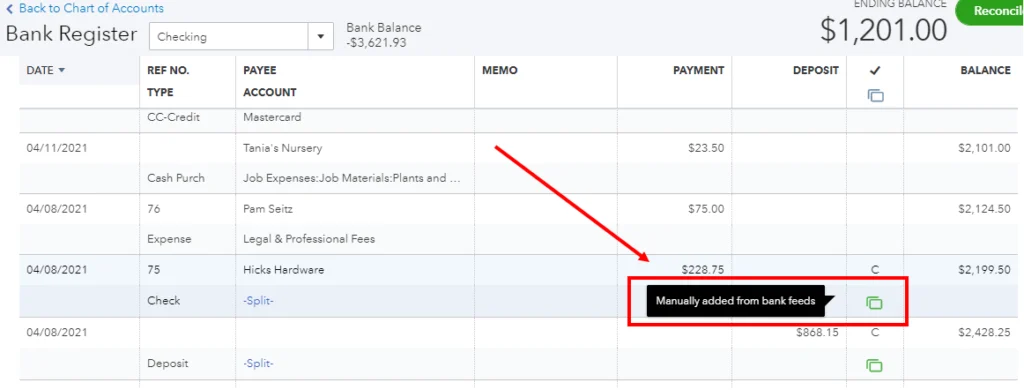
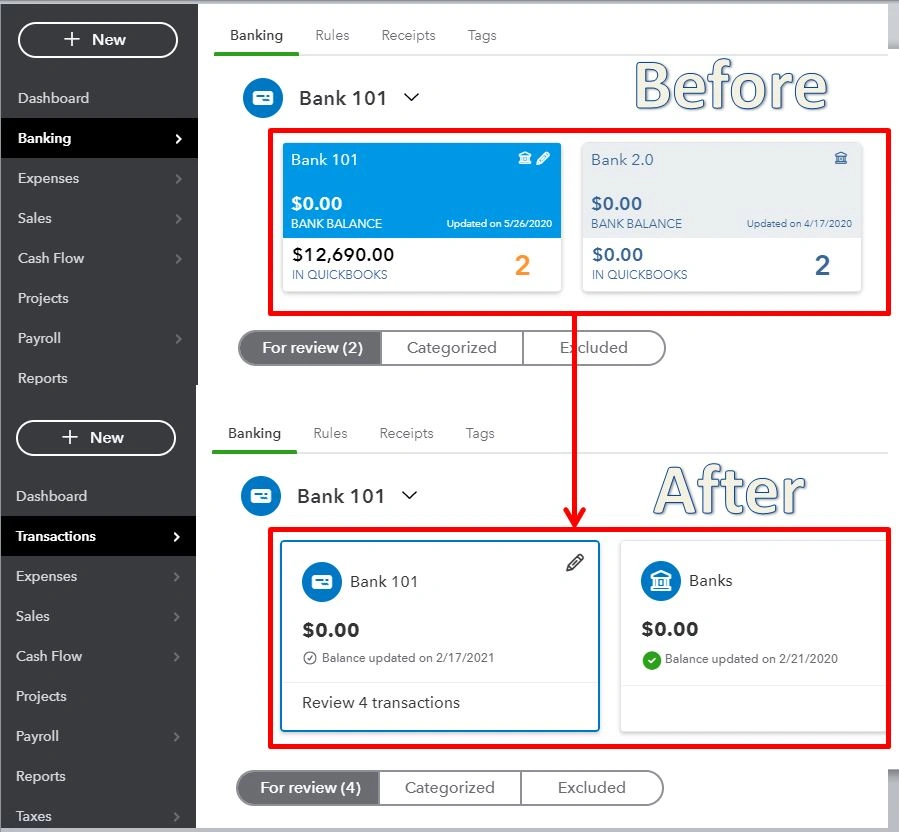
This feature is very useful for long-term financial discipline.
5. Reporting & Business Insights
The most powerful part is the reports section.
You can easily see:
- Profit & Loss Report
- Balance Sheet
- Cash Flow Statement
- Expense Breakdown
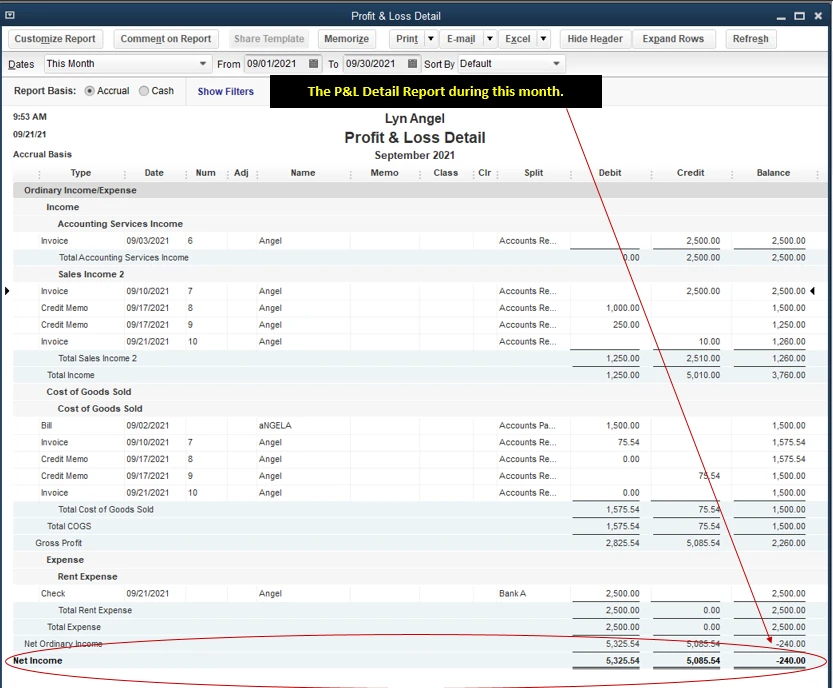
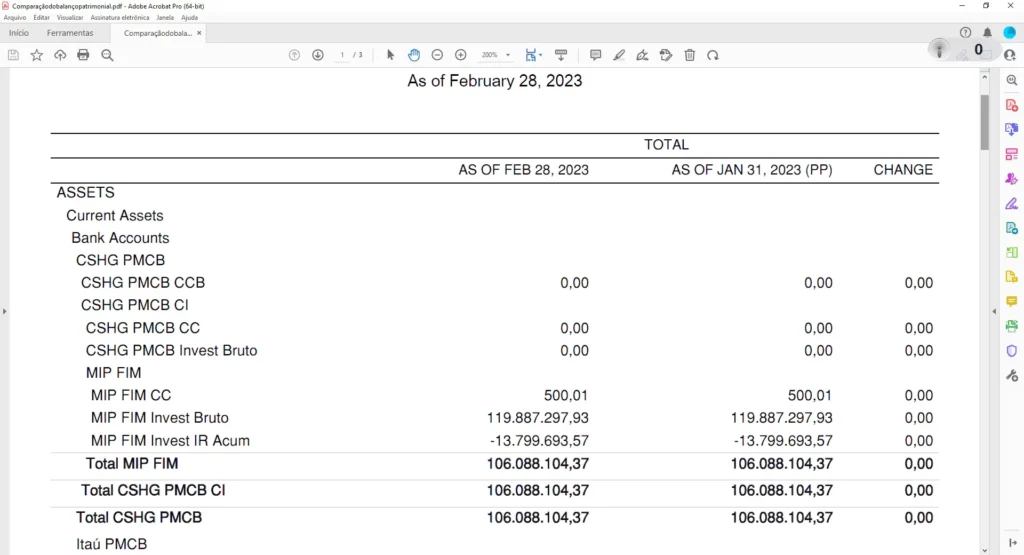
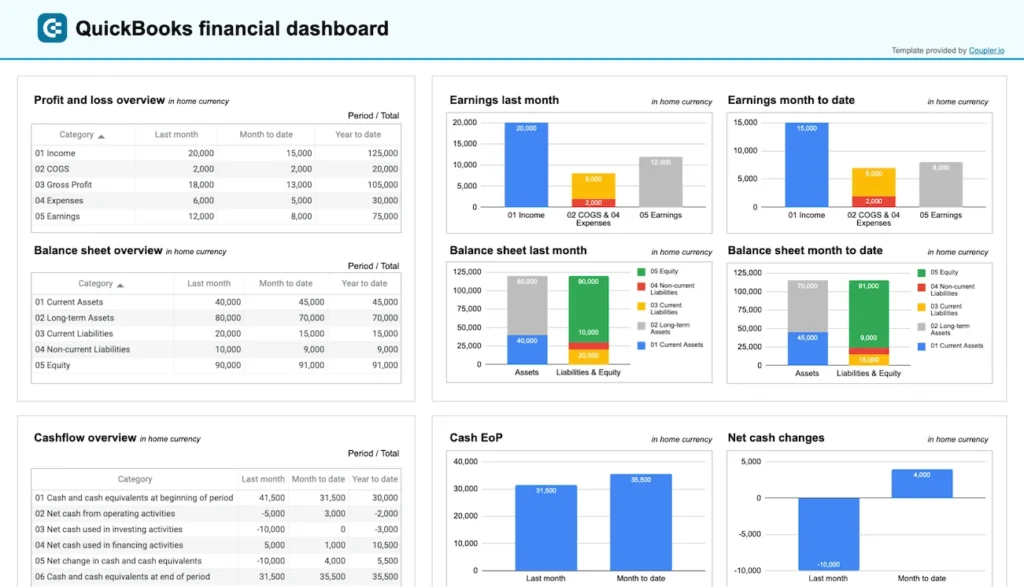
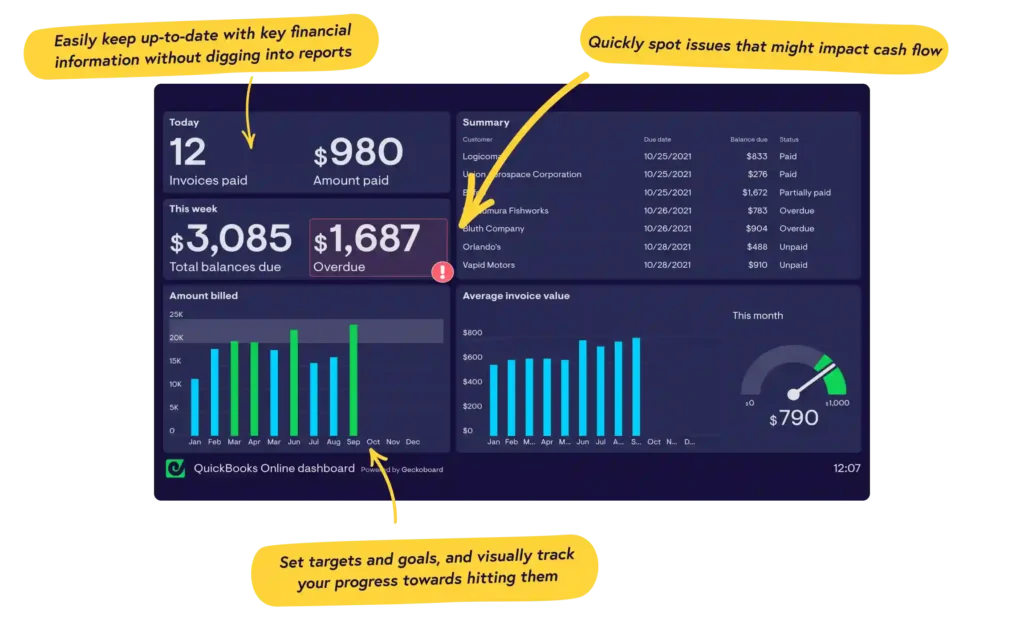
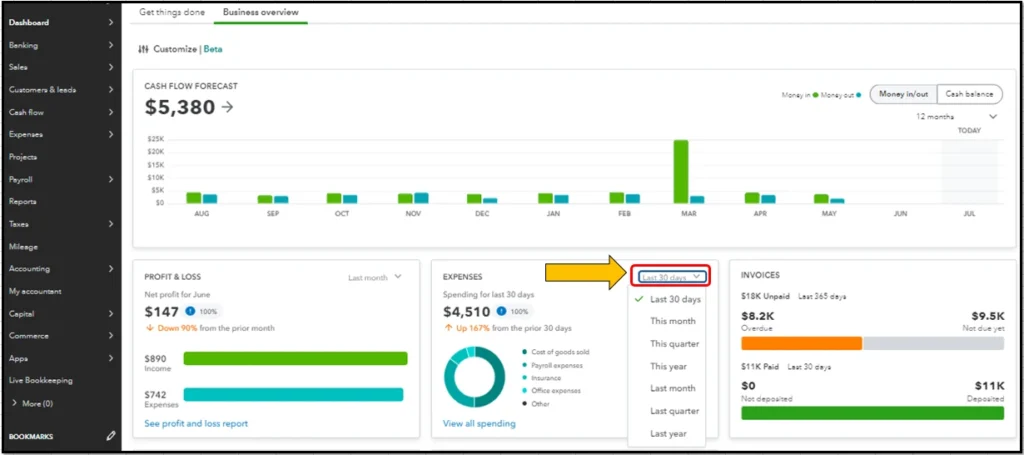
These reports help with decision-making. You can clearly understand whether the business is growing or just generating revenue without any profit.
CONCLUSION
Simply put, QuickBooks Online is designed for business owners who want to take their accounting seriously but don’t have the time or background to become an accountant. In today’s world, simply making money isn’t enough—you also need to know how much profit is remaining, where expenses are rising, and whether cash flow is stable.
The biggest advantage of QuickBooks is that it clearly displays all this data in one place. Whether it’s sending invoices, tracking daily expenses, or viewing monthly reports—everything is organized. This fosters the habit of making decisions based on numbers rather than guesswork.
In simple words, if you want to take your business to the next level and reduce financial stress, this tool gives you three things: clarity, control, and confidence.
FAQs (Frequently Asked Questions)
Q. What is QuickBooks Online used for?
Ans. QuickBooks Online is primarily used to manage small business accounting. Through it, you can create invoices, record daily expenses, track vendor bills, and sync your bank transactions into the system. Most importantly, it gives you clear financial reports—such as Profit & Loss and Cash Flow—that let you know how much your business is actually earning and where it’s spending.
Q. Is QuickBooks Online good for beginners?
Ans. Yes, this is a very suitable tool for beginners. Its dashboard is simple and clean, with every option clearly visible. The setup process is guided, and the system itself tells you the next step. Features like bank auto-feed and ready-made invoice templates make the job easy for beginners. Even if you don’t have an accounting background, you can easily learn basic usage.
Q. Can I manage my small business accounts without an accountant using QuickBooks?
Ans. Yes, you can manage basic accounting yourself. QuickBooks Online simplifies invoices, expense tracking, and reports. However, if you need complex tax planning, it’s best to seek the advice of a professional accountant.
Q. Does QuickBooks Online connect with bank accounts?
Ans. Yes, it connects securely to bank accounts. Once you link your bank, transactions are automatically imported into the software. This significantly reduces the burden of manual data entry and reduces the chance of errors. You can also categorize and match transactions, keeping accounting records accurate and up-to-date.
Q. What reports can I check in QuickBooks Online to know my profit?
Ans. You can view the Profit and Loss report, Balance Sheet, and cash flow report. The Profit and Loss report shows how much revenue was generated and how much was spent. These reports help understand the financial health of the business.
Q. Is QuickBooks the best accounting software for non-tech users?
Ans. If you come from a non-tech background and want a simple, easy-to-understand accounting solution, QuickBooks Online is a strong option. Its dashboard is clean, a guided setup is available, and automation features reduce manual tasks. Basic invoicing, expense tracking, and reporting can be managed without technical knowledge.